Connect Your Social Accounts
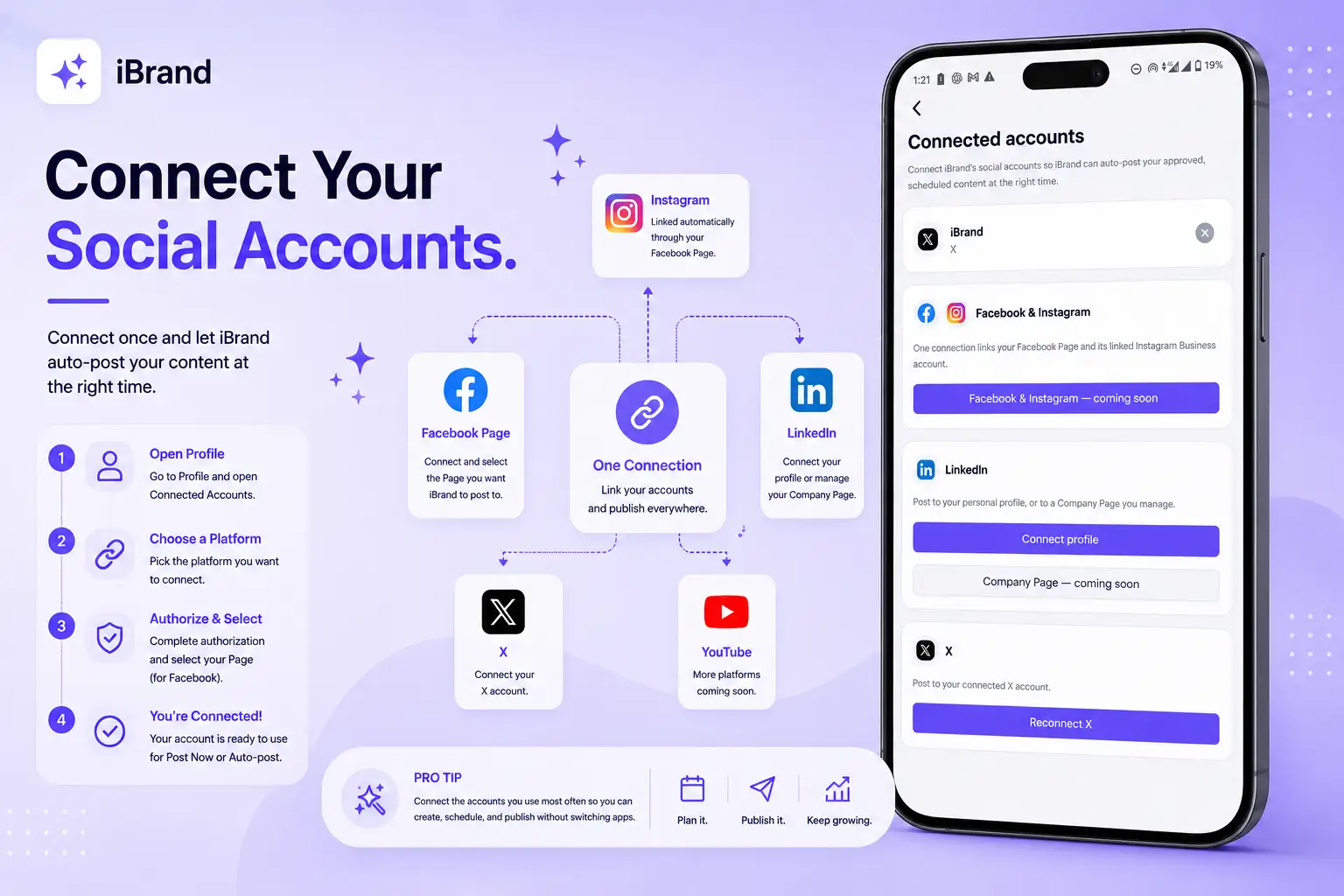
Connect your social accounts once, and iBrand can help you publish your content where your audience is. 🔗
How to connect an account
Open your Profile
Go to the Profile tab and open Connected Accounts.
Choose a platform
Select the platform you want to connect.
📘 Facebook & Instagram
Tap Connect Meta and complete the authorization process.
After connecting Facebook, iBrand will show the Facebook Pages available to you.
📄 Select the Page you want to use with iBrand.
📸 If your Instagram Business account is linked to that Facebook Page, it can be connected through the same Meta connection.
💼 LinkedIn
Tap Connect profile and complete the authorization process.
You can connect your LinkedIn profile and use it when publishing your content.
𝕏 X
Tap Connect X and authorize your account.
Confirm your connection
After authorization, you'll be returned to iBrand and your connected account will appear on the Connected Accounts screen.
Didn't return to connected accounts?
Sometimes the authorization page may not redirect you back automatically.
No worries.
Simply go back to Profile → Connected Accounts and check the platform you just connected.
For Facebook, you may also need to select the Facebook Page you want to use.
🚀 Once connected, your accounts will be available when you use Post Now or turn on Auto-post.
Pro tip
Connect the accounts you use most often so you can create, schedule, and publish without switching between apps.