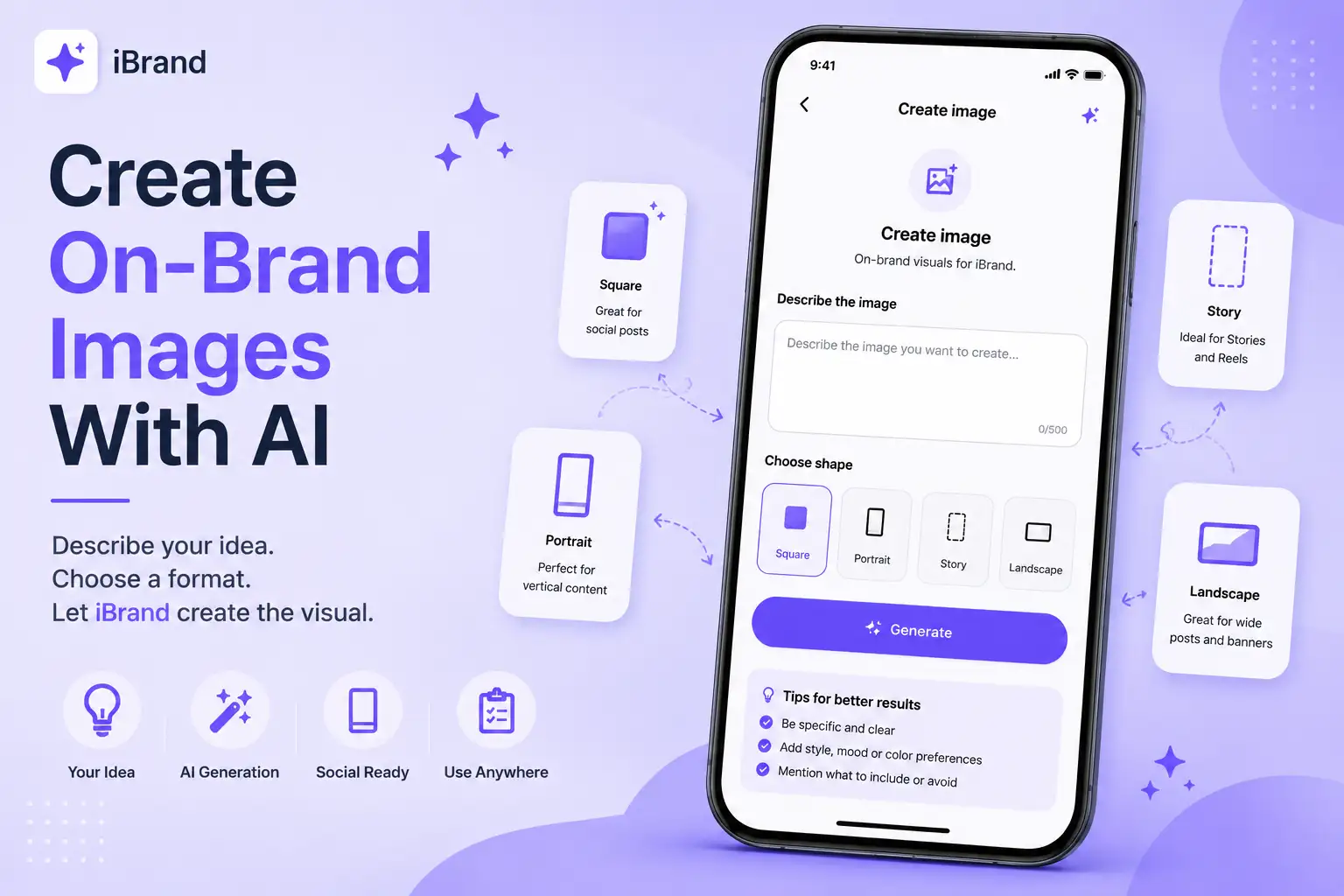
Create On-Brand Images With AI
Your content deserves a visual to match. 🎨 With iBrand, you can create custom visuals for your brand without starting from a blank canvas.
How to create an image
Open Create Image
From the Home screen, go to the Quick Actions section and tap Create Image.
Describe what you want
Tell iBrand what you want your image to look like. Describe the subject, setting, mood, style, or anything important you want included.
Choose your format
Pick the shape that fits where you want to use the image:
⬛ Square — Great for regular social media posts.
📱 Portrait — Ideal for vertical social content.
📲 Story — Perfect for Stories and other full-screen vertical content.
🖼️ Landscape — Great for wide posts, banners, and horizontal content.
Generate
Tap Generate and iBrand will create a visual based on your description and brand context.
Try again or use it
Want a different result? Regenerate and try another variation. When you're happy with the result, use it with your content.
Pro tip
Don't just say “create an image for my business.”
Give iBrand useful details like:
📍 What should be shown?
🎨 What style should it have?
💡 What's the main idea?
👥 Who is it for?
✨ What feeling should it create?
The more context you provide, the closer the result can be to what you're imagining.
🎨 Your idea. Your brand. Your visual.